by Sandy Ball, Assistant to the Associate Dean for University Park Libraries
How do I accept all of those reminders that recently appeared in my Oracle In-tray? (Classes begin/end, semester begin/end, etc.)
You simply need to accept them and you can do so "en masse." Here's how:
Left click on the first entry (for example: Classes End/Second Six Weeks). Then, scroll to the bottom of the in-tray proposals. On the very last entry, hold down the Cntrl and Shift keys and left click. All of the entries will be highlighted.
Right click and select Will Attend from the list of options. It will take a moment and all entries will be accepted and be removed from you in-tray.
Showing posts with label Oracle Calendar. Show all posts
Showing posts with label Oracle Calendar. Show all posts
October 5, 2009
May 16, 2009
Adding Non-Oracle Calendar Users to a Meeting in Oracle Calendar
The value of a calendaring system is the ability to share calendars with your colleagues. If you're all on Oracle Calendar, this is easy. But what if someone you want to invite is not on Oracle Calendar? All you need is his/her email address:
- In the New Meeting dialog box, enter the person's full email address in the Add field, as in "personsname@domainname.com".
- Click the Add Person/Resource button (looks like a green checkmark). The person will be added to the list of people and resources below. An email icon will appear beside this name.
- Repeat this process for each non-Oracle Calendar user who should attend this event. Then Click OK.
- When prompted to send an email reminder about this meeting, click Yes. You will be able to send vCal and iCal attachments to your non-Oracle Calendar user attendees via email along with their reminder. They can add this data to their calendars.


December 15, 2008
Oracle Group Agenda: Find a Meeting Time
 Have you been having a hard time finding a common meeting time and room for several people? Let Oracle Calendar's Group Agenda (view) feature help you!
To Open the Group Agenda
- Using Oracle Calendar desktop client, click File→Open→Group Agenda... A dialog box will appear.
- In the Open Group Agenda dialog box, add the names or userids (ex: abc123) for each person, one at a time.
- Add each resource. You can do this by searching, or you can type res: plus the name of the resource. Example: res: UL UP/Paterno 108
- Make sure you have added all the people and resources you need, then click OK. A Group Agenda will appear.
How to Use Group Agenda
 The Group Agenda view shows a single day at a time for all group members, but you may use the Previous, Next, and Select Date buttons to move to any date you wish.

Combined column: Red areas show where one or more members of your group are unavailable. White areas are times that are free for all group members.
If you are having trouble getting the whole group together, you may decide to meet without a few really busy members who are not essential to your meeting. Each member of the group has a checkbox beside it. To have a member's availability removed from group consideration, uncheck this box.
Double-click on an any block of time from the this column and all members of your group will be added to the meeting proposal automatically!
August 11, 2008
Adding Room Locations in Oracle Calendar
Submitted by Susan Walker, Assistant to the Dean, Penn State University Libraries.
To reserve a meeting room, go to… File / New / Meeting. Then follow these two steps:
1. On the "People/Resources" tab, click on the magnifying glass ("Advanced search" tool).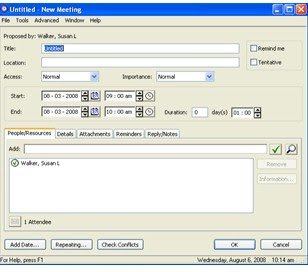
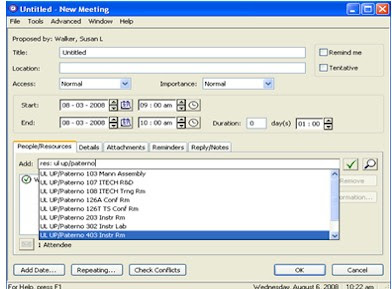
2. The Directory Search window opens. From there, click the Resources tab, then the Search by Resource radio button. To supply the resource name, type UL, and press Search; a list of University Libraries (UL) resources will be listed in the left-side window. Select the resource you want and "Add" it to the proposal. Click OK. (For example: Mann Assembly Room is UL UP/Paterno 103 Mann Assembly.)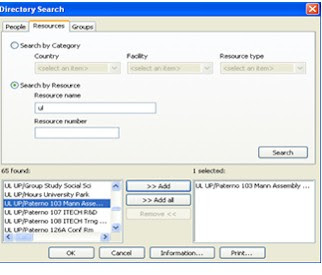 Hint: You can also list resources in the "New Meeting” window. On the "People/Resources" tab, type res: ul in the Add box, and press enter. A pop-up window appears containing all the Libraries' resources. Select the resource and click OK. [Note: You can also be more specific and type res: ul up/paterno. Only resources for Paterno will appear in the pop-up window.]
 If inviting a resource such as Mann Assembly Room, Foster Auditorium, Libraries Wide Calendar, or any of the instructional rooms that are published to the Web, don't forget to change "access" level of your meeting from "normal" to "public" so that it is viewable on the published calendar.
To reserve a meeting room, go to… File / New / Meeting. Then follow these two steps:
1. On the "People/Resources" tab, click on the magnifying glass ("Advanced search" tool).

2. The Directory Search window opens. From there, click the Resources tab, then the Search by Resource radio button. To supply the resource name, type UL, and press Search; a list of University Libraries (UL) resources will be listed in the left-side window. Select the resource you want and "Add" it to the proposal. Click OK. (For example: Mann Assembly Room is UL UP/Paterno 103 Mann Assembly.)
 Hint: You can also list resources in the "New Meeting” window. On the "People/Resources" tab, type res: ul in the Add box, and press enter. A pop-up window appears containing all the Libraries' resources. Select the resource and click OK. [Note: You can also be more specific and type res: ul up/paterno. Only resources for Paterno will appear in the pop-up window.]
 If inviting a resource such as Mann Assembly Room, Foster Auditorium, Libraries Wide Calendar, or any of the instructional rooms that are published to the Web, don't forget to change "access" level of your meeting from "normal" to "public" so that it is viewable on the published calendar.
May 5, 2008
Oracle Calendar: How to Print a Single Calendar Entry
Submitted by Susan Walker , Assistant to the Dean, Penn State University Libraries. Thanks go to Jennifer Cain in Libraries' Human Resources for sharing this tip.
Did you know that in addition to printing daily, weekly, and monthly Oracle calendar schedules, you can also print a "single" entry? Here’s how:
1. From your agenda, click on the activity that you wish to print. Note: A bar will appear above and below the selected entry.
2. Then click File, and choose Print Selected Entry…
3. A Print Setup screen appears. Choose Portrait or Landscape from the “setup” button for your printer or the “layout” dropdown menu for Oracle. Your printed page will include all information pertinent to that activity: title and location; date and time; attendee information (attending, not attending, unconfirmed); resource information, detail information, and information as to who proposed the meeting.
February 8, 2008
The Essential Oracle Calendar Checklist
Now that your Oracle Calendar is up and running, here is a checklist of essentials checking for your new calendar setup:
- Compare recurring activities/meetings in March and April to make sure the migration did not shift them by an hour. (It is a Daylight Savings Time migration issue.) If this has happened, click on an instance of the recurring meeting, highlight all of the dates that have been incorrectly shifted, fix the times, and click OK.
- Make sure you have set your work hours so that others know when you are available and unavailable for meetings. Under Tools→Options→Hours, set each day's Start Time and End Time both for Normal Hours and Extended Hours. (Extended hours are those beyond your normal hours that you'd be willing to make yourself available for meetings if necessary.) For your days off, the "hack" is to set the Start Time and End Time at one minute apart from one another so that no meetings can be scheduled.
- Make sure you know when you are being scheduled for meetings by getting email alerts. Under Tools→Options→Receive Notification, check Allow others to notify you of new entries by e-mail. Not only will this give you email invites, but it will allow others to send attachments related to the meeting as well. (Note: You may also want to go check some of the options under Send Notification so that Oracle Calendar reminds you to send emails out to others for the meetings you create, edit and delete.)
January 18, 2008
How to Get Oracle Calendar on Any Computer
On February 4, your Oracle Calendar accounts will be ready and Meeting Maker will go to READ-ONLY mode. The Oracle Client (the software) will be pushed out to all library staff images on Monday, January 21. The client will be available after a reboot of your machine.
Q: What if I work from a computer that does not have a staff image? What if I want to check Oracle Calendar from my home computer?
A: Oracle Calendar is licensed (paid for) by the number of accounts, not the number of clients (software installs). This means you can install the Oracle Calendar Client on as many computers as you like, Mac or PC.
If you have need to install and configure the Oracle Calendar Client on a non-library staff imaged computer, follow the instructions below:
Don't forget to go to https://intranet.libraries.psu.edu/home/training/oracle.html to sign up for Oracle Calendar training and print out the Oracle training handouts!
Q: What if I work from a computer that does not have a staff image? What if I want to check Oracle Calendar from my home computer?
A: Oracle Calendar is licensed (paid for) by the number of accounts, not the number of clients (software installs). This means you can install the Oracle Calendar Client on as many computers as you like, Mac or PC.
If you have need to install and configure the Oracle Calendar Client on a non-library staff imaged computer, follow the instructions below:
- Go to http://downloads.its.psu.edu & log in with your access account.
- Click on Calendaring Software→Oracle Collaboration Suite Calendar→Windows.
- Click on Version: 10.1.2.0 to download it.
- Run the installation.
- Enter the following settings for configuration:
- Server: cal.psu.edu
- Node: 4200*
- Authentication: Standard Authentication
- Compression: Run Length Encoding compression
- Encryption: Affine Cipher
Don't forget to go to https://intranet.libraries.psu.edu/home/training/oracle.html to sign up for Oracle Calendar training and print out the Oracle training handouts!
January 2, 2008
Meeting Maker Titles: We Want YOU for Oracle Calendar Migration!
At the last Tech Update, we announced that Penn State University Libraries will be migrating from Meeting Maker to Oracle Calendar on February 4, 2008.
The Oracle Calendar Project Group is meeting regularly to plan data migration, calendaring policies and training opportunities. Now, we'd like to recruit YOU to help make your calendar "be all that it can be"...
In Oracle Calendar, a meeting title is truncated to 64 characters. To prepare for the migration, you may want to shorten your Meeting Maker meeting titles to something meaningful now, rather than letting an automated migration process try to do it for you later.
For each meeting you proposed:
We're looking for a few good men (and women) to sign up for Getting Started With Oracle Calendar training. Go to the migration website (https://intranet.libraries.psu.edu/home/training/oracle.html#training) to pick a training session, click on the registration link, and "enlist" today!
The Oracle Calendar Project Group is meeting regularly to plan data migration, calendaring policies and training opportunities. Now, we'd like to recruit YOU to help make your calendar "be all that it can be"...
In Oracle Calendar, a meeting title is truncated to 64 characters. To prepare for the migration, you may want to shorten your Meeting Maker meeting titles to something meaningful now, rather than letting an automated migration process try to do it for you later.
For each meeting you proposed:
- If your Proposals window is not already up, go to Window→Proposals.
- Expand your Sent items (with the triangle to the left) so you can see the meetings you proposed.
- Double-click on a meeting.
- Rename the Title something 64 characters or less.
- Add any other details of the meeting to the Details field.
- Remember that the Details field is not private! Do not put personal, confidential, or inappropriate comments in this field.
- Click Update.
- Repeat with for each meeting you created that has a long title.
We're looking for a few good men (and women) to sign up for Getting Started With Oracle Calendar training. Go to the migration website (https://intranet.libraries.psu.edu/home/training/oracle.html#training) to pick a training session, click on the registration link, and "enlist" today!
December 10, 2007
Shopping Around: Which Oracle Client Is Right for Me?
It's time to do a little shopping. No, not in crowded malls in long lines at 6AM, but we are about to get a new calendaring system.
On February, 4, 2008, we will be migrating from Meeting Maker for Oracle Calendar.
The Oracle Calendar Desktop Client software can be installed as many machines as you need, including your home computer. You can also access the Oracle Calendar from the Web Client without installing it. When the time comes to make the switch, which version of the Oracle Calendar Client will you want to use? We found this chart to be very helpful when "shopping around."
For more on the January training sessions and migration announcements, go to https://intranet.libraries.psu.edu/home/training/oracle.html
On February, 4, 2008, we will be migrating from Meeting Maker for Oracle Calendar.
The Oracle Calendar Desktop Client software can be installed as many machines as you need, including your home computer. You can also access the Oracle Calendar from the Web Client without installing it. When the time comes to make the switch, which version of the Oracle Calendar Client will you want to use? We found this chart to be very helpful when "shopping around."
For more on the January training sessions and migration announcements, go to https://intranet.libraries.psu.edu/home/training/oracle.html
Subscribe to:
Posts (Atom)

 Posts


