Showing posts with label Windows. Show all posts

August 9, 2010

Logging Into Windows 7 on a Shared Workstation

"Help!  I can't log into a Windows 7 machine!"
If you would like to log in to a Windows 7 workstation where someone else was logged in previously, do the following:
  1. From the Windows 7 Welcome screen, click the Switch User button.
  2. For username, enter your Access ID and append "@dce.psu.edu" to it, as in abc123@dce.psu.edu.
  3. Enter your Access Account password and log in.

August 2, 2010

Even More Windows Keyboard Shortcuts

If you like to use keyboard shortcuts, here are a few more for Microsoft Windows.  Use your numeric keypad with your NUM LOCK on and you will be good to go!

CharacterShortcut
ÀALT+0192
ÁALT+0193
ÂALT+0194
ÃALT+0195
ÄALT+0196
ÅALT+0197
ÆALT+0198
ÇALT+0199
ÈALT+0200
ÉALT+0201
ÊALT+0202
ËALT+0203
ÌALT+0204
ÍALT+0205
ÎALT+0206
ÏALT+0207
ÐALT+0208
ÑALT+0209
ÒALT+0210
ÓALT+0211
ÔALT+0212
ÕALT+0213
ÖALT+0214
×ALT+0215
ØALT+0216
ÙALT+0217
ÚALT+0218
ÛALT+0219
ÜALT+0220
ÝALT+0221
ÞALT+0222
ßALT+0223
àALT+0224
áALT+0225
âALT+0226
ãALT+0227
äALT+0228
åALT+0229
æALT+0230
çALT+0231
èALT+0232
éALT+0233
êALT+0234
ëALT+0235
ìALT+0236
íALT+0237
îALT+0238
ïALT+0239
ðALT+0240
ñALT+0241
òALT+0242
óALT+0243
ôALT+0244
õALT+0245
öALT+0246
÷ALT+0247
øALT+0248
ùALT+0249
úALT+0250
ûALT+0251
üALT+0252
ýALT+0253
þALT+0254
ÿALT+0255

July 26, 2010

Tips for Windows 7 Searches

Windows 7 has great search capabilities:
  • You can use search to find a program or command that you don't see on the Start Menu (eg. "vpn" or "run").
  • You can search the contents of a specific location only by browsing to that location in Windows Explorer and using Windows Explorer's search box.
  • You can use Windows 7 Advanced Query Syntax (AQS) to refine your search (eg. "tags:=CMS" or "author:lnm105").  For more AQS terms and examples, see http://www.microsoft.com/windows/products/winfamily/desktopsearch/technicalresources/advquery.mspx
  • You can save searches to a folder location or to a library by clicking the Save Search button above your search results.

July 19, 2010

Using Windows 7 Libraries

Windows 7 Libraries collect folders  of related content in a single location. 

Windows 7 has 4 default libraries: Documents, Music, Pictures, and Video.  In addition to including locations such a My Documents and My Pictures, you can add other local folders, network shares, some external drives, and even saved searches.


To Add or Remove a Location to a Library:
  1. Open Windows Explorer, expand the Libraries directory, and open the library.  Windows Explorer will display the title and contents of the library.
  2. At the top of the window directly below the title of the library, you will see the following "Includes: # locations".  Click the locations link and the locations dialog box will appear.
    1. To add a location, click the Add... button, browse to the location, and click Include folder.  The folder will be added to the library.
    2. To remove a location, select the location, and click the on will remove the location Remove button.  Your folder will be removed from the library only; it will not be deleted.
      Note: Clicking the Remove button will remove the location from your library immediately; you will not be prompted to confirm this choice.
Tip: You can even create your own custom libraries for projects, committee work, or course materials:
  1. Open Windows Explorer, and click the Libraries directory. Windows Explorer will display list your current libraries.
  2. From the menu bar at the top of the window, click New Library and rename the new library that appears (eg. CMS, Discovery Day, Services Training Team, IST Courses, etc.).
  3. Add locations to your library using the instructions above.

July 12, 2010

Changes to the Windows 7 Taskbar

In Windows XP, if you had multiple files open with the same program, each file was had its own taskbar button taking up space on your Taskbar.  There was also a set of shortcut icons to programs you used frequently, called the Quick Launch Toolbar.


In Windows 7, there are some changes to how the taskbar works:
  • Taskbar buttons work like Quick Launch shortcuts (links); you can "pin" any application to the taskbar as a shortcut by right-clicking the application and choosing Pin this item to the taskbar.
    Note: If you pin Workflows, your taskbar button will look like a Java icon.
  • Only one taskbar button appears for each program.  When you hover over an application's taskbar button, you will see a list (or preview) of files that are currently open with that program.
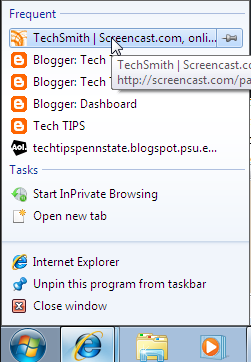
  • If you right-click a taskbar button, you will get a jump list of recently opened files.  You can also "pin" files to this list so they remain there.
  • The notifcation area in the right takes up less space.  If you need to view more security and maintenance information, click the Action Center button in this area.  If you'd like to add buttons to the notifcation area, click the Show hidden icons button to custiomize this area.
  • The Show desktop button is a small bar on the far right.  Click it once to show your desktop and again to restore the files you were working on.

July 6, 2010

Changes to the Windows 7 Start Menu

In Windows 7, a number of changes have been made to the  Start menu:
  • Windows 7 uses Jump Lists instead of the Recent Items menu option.  When you locate a program from the Start Menu, you may see a right arrow.  If you hover over this arrow, you get a jump list—a list of recently used files opened by that program.
  • Windows 7 uses Libraries as well as folders.  A library is not just a physical location on your hard drive; it can include multiple folder locations on your hard drive, as well as folders on external drives and network drives.  Your default libraries are Documents, Music, Pictures, and Videos, but you can create your own libraries for special projects, committees, etc.
  • Windows 7 has a Search built into the Start menu.  Use search to find programs, folders, and even email more quickly.